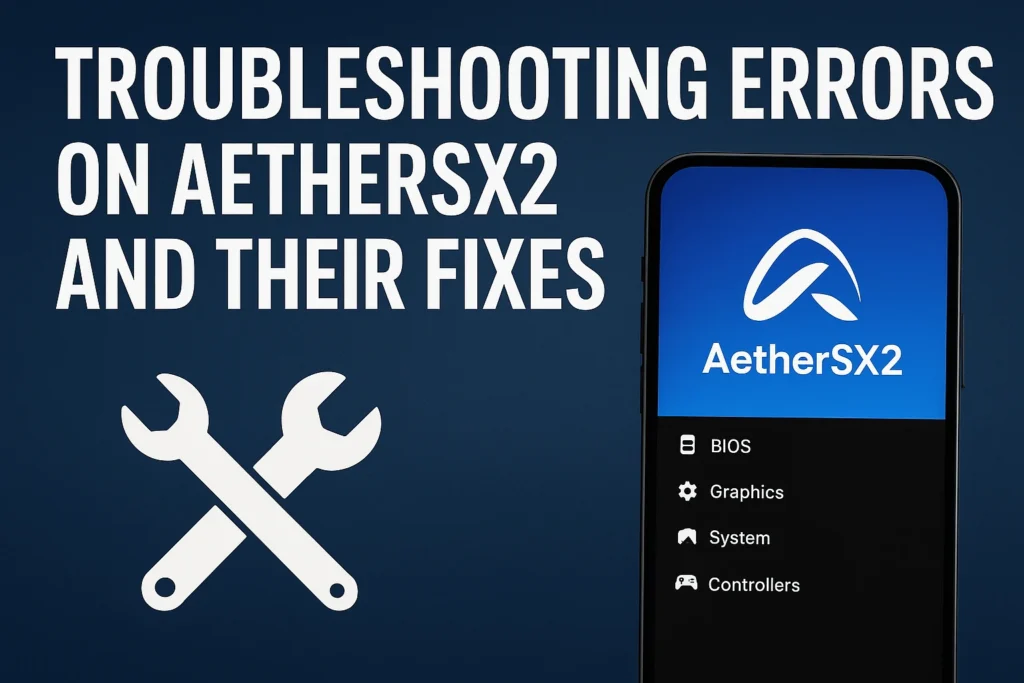
Troubleshooting Errors on AetherSX2 and Their Fixes
If AetherSX2 isn’t working on your Android device, you’re not alone. Many PS2 gaming fans face issues like crashes, black screens, lag, or BIOS errors when trying to run their favorite titles. The good news? Most of these problems can be fixed easily with a few simple tweaks.
In this guide, we’ll go through the most common AetherSX2 not working issues and show you step-by-step solutions to get your emulator running smoothly again.
In this guide, we’ll go through the most common AetherSX2 not working issues and show you step-by-step solutions to get your emulator running smoothly again.
1. AetherSX2 Crashes on Startup
Possible Causes:
- Corrupted APK or outdated version
- Incompatible device or Android version
- Missing BIOS file
Fixes:
- Update or reinstall AetherSX2:
Go to aethersxx2.com and download the latest AetherSX2 APK. Uninstall the old version first to avoid conflicts. - Check device compatibility:
AetherSX2 requires at least an ARMv8 (64-bit) processor and Android 8.0 (Oreo) or higher. - Verify BIOS file:
Make sure you’ve added a valid PS2 BIOS file (download BIOS here). Without it, the emulator can’t boot games.
2. Games Not Loading or Stuck on a Black Screen
Possible Causes:
- Wrong BIOS region
- Corrupt game ISO
- Incorrect settings
Fixes:
- Use a verified PS2 BIOS:
The BIOS region must match the game (e.g., NTSC for U.S. games, PAL for European). - Check your ISO file:
Use a clean ISO ripped from your original disc. Avoid compressed or patched ROMs. - Switch renderer:
In Settings → Graphics, change the renderer between Vulkan, OpenGL, and Software. One of these usually fixes black screens.
3. AetherSX2 Lagging or Running Slow
Possible Causes:
- Low-end device
- High internal resolution
- Unoptimized settings
Fixes:
- Lower the internal resolution:
Go to Graphics → Upscale Multiplier → set to 1x or 2x. - Enable “Skip BIOS intro”:
It reduces startup lag slightly. - Turn on “Multi-threaded VU” and “Preload TLB”:
Found under CPU Settings, these options help boost performance. - Close background apps:
Free up RAM and CPU resources before launching AetherSX2.
4. Controller Not Working
Possible Causes:
- Input not configured
- Bluetooth or USB controller not recognized
Fixes:
- Configure controls manually:
Go to Settings → Controller → Mapping and assign buttons manually. - Reconnect Bluetooth controller:
Unpair and re-pair your controller if it doesn’t respond. - Try wired mode:
For stable input, use a USB OTG cable if your device supports it.
5. BIOS Not Detected
Possible Causes:
- BIOS file missing or incorrectly placed
- Wrong BIOS path in settings
Fixes:
- Download a proper BIOS file:
The BIOS file should be named like SCPH-70012.bin and stored in a dedicated folder. - Set the BIOS location:
Go to Settings → BIOS → Select BIOS path and choose the correct file. - Avoid fake BIOS files:
Only use legally dumped BIOS from your PS2 console.
6. No Sound or Audio Distortion
Possible Causes:
- Audio backend issues
- Low frame rate affecting sound sync
Fixes:
- Change audio backend:
Go to Settings → Audio → Backend and switch between OpenSL ES and AAudio. - Enable “Time Stretching”:
This helps keep audio in sync when FPS drops.
Bonus Tip: Reset to Default Settings
If you’ve changed too many settings and can’t figure out what went wrong, you can easily reset AetherSX2:
- Open Settings → System → Reset Settings to Default
- Relaunch the app and reconfigure only the essentials (BIOS path, renderer, controls).
Final Thoughts
AetherSX2 is one of the best PS2 emulators for Android, but like any advanced emulator, it needs proper configuration. Most “AetherSX2 not working” issues come down to BIOS errors, bad ISO files, or device limitations. With the fixes above, you can get back to smooth, nostalgic PS2 gaming in minutes.If you still face problems, make sure you’re using the latest version of the emulator.